How to Make a Classroom Leaderboard That Students Actually Love
A step-by-step guide for teachers who want to add a live leaderboard to their classroom without any tech setup.
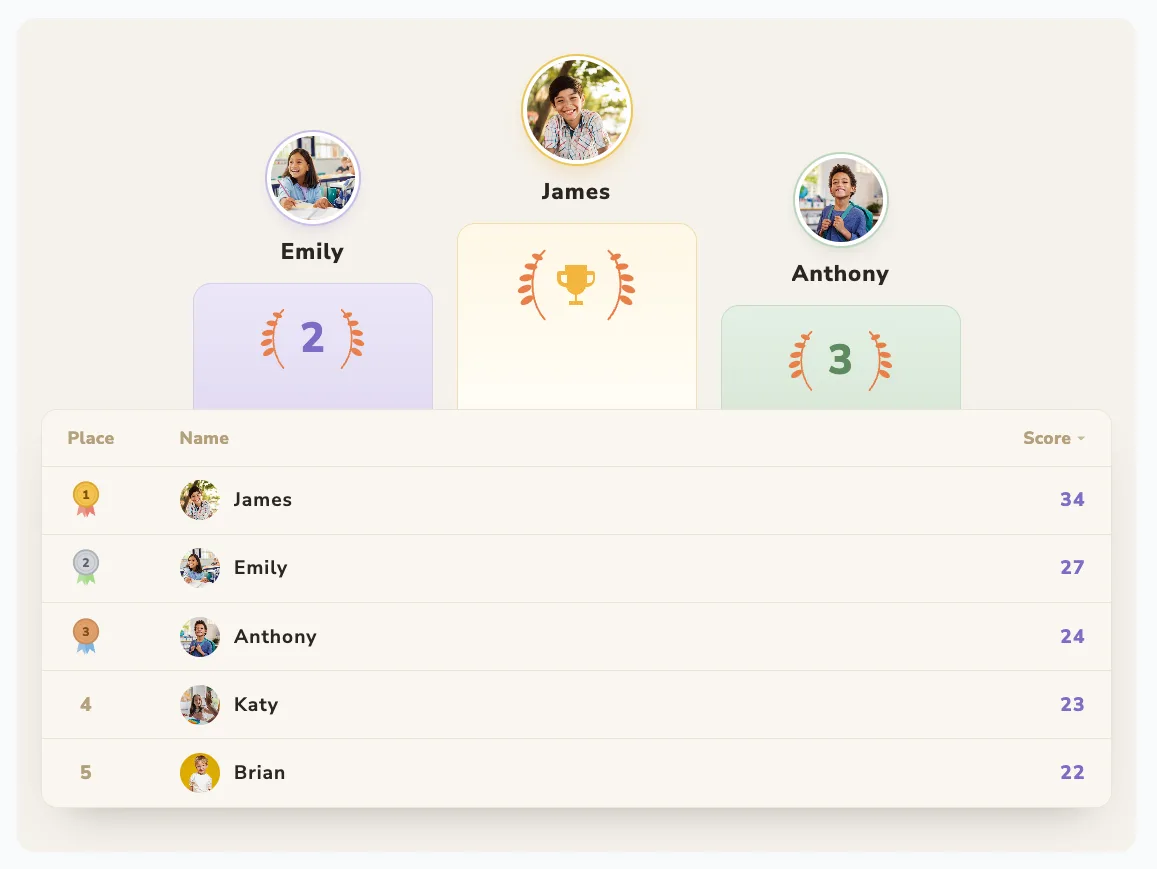
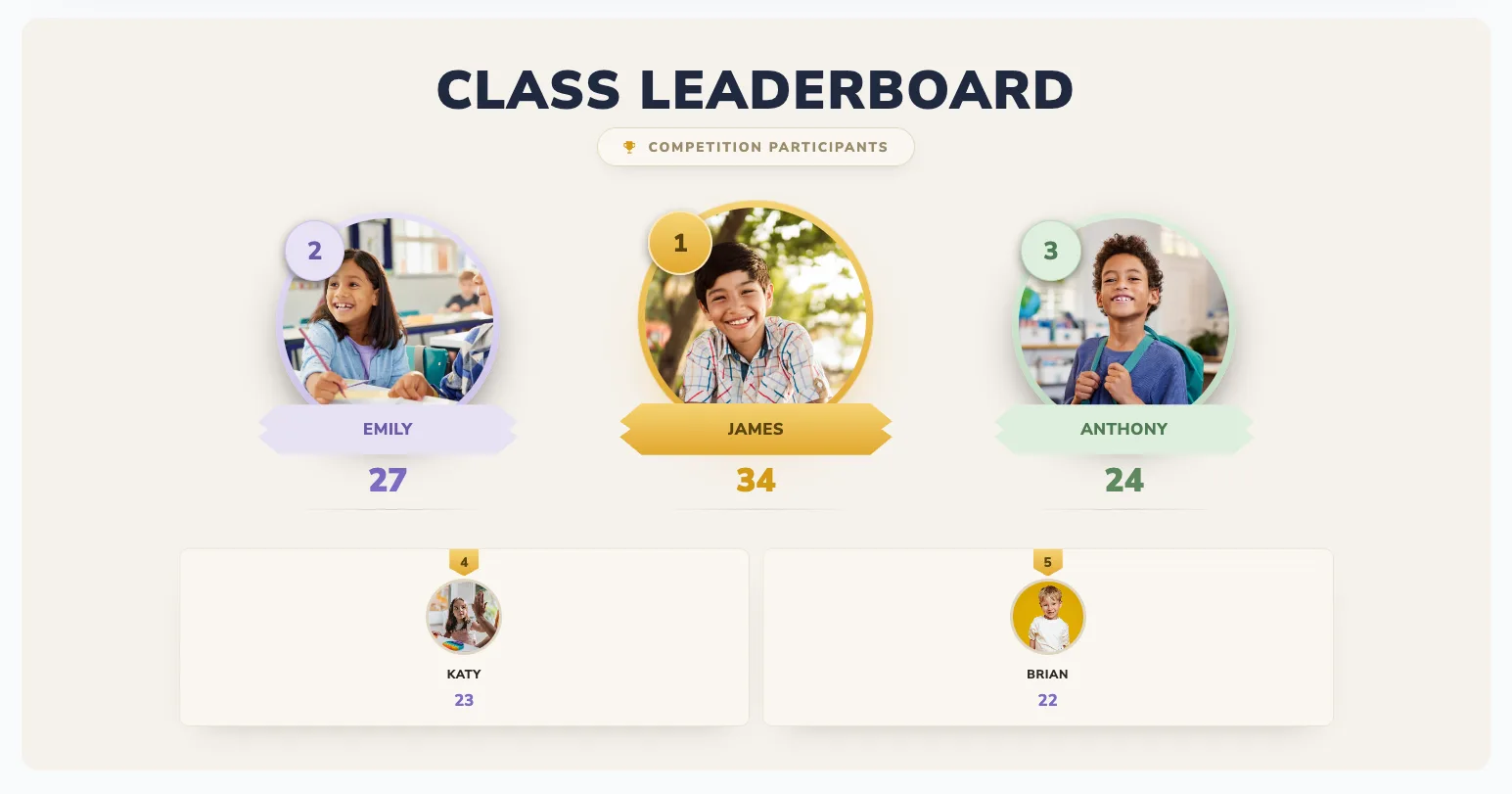
Walk into a classroom with a live leaderboard on the big screen and you can feel the difference. Heads turn to the board the moment a score updates. Students who never raise their hand suddenly ask, "Did mine go up?" Done well, a classroom leaderboard turns everyday tasks into a game students want to win.
This guide walks you through setting one up in under two minutes - and, just as importantly, how to keep it fair, positive, and motivating for every student in the room.
Why classroom leaderboards work
Research on gamification consistently links visible progress and friendly competition to higher engagement. A leaderboard works because it makes effort visible and immediate - two things traditional grading rarely does in real time. It taps into students' natural drive to improve while giving quieter achievers public recognition they might not otherwise get.
But a poorly designed leaderboard can backfire: it can embarrass struggling students or turn class into a stressful ranking exercise. The rest of this guide is about getting the upside without the downside.
Step 1: Pick what you're tracking
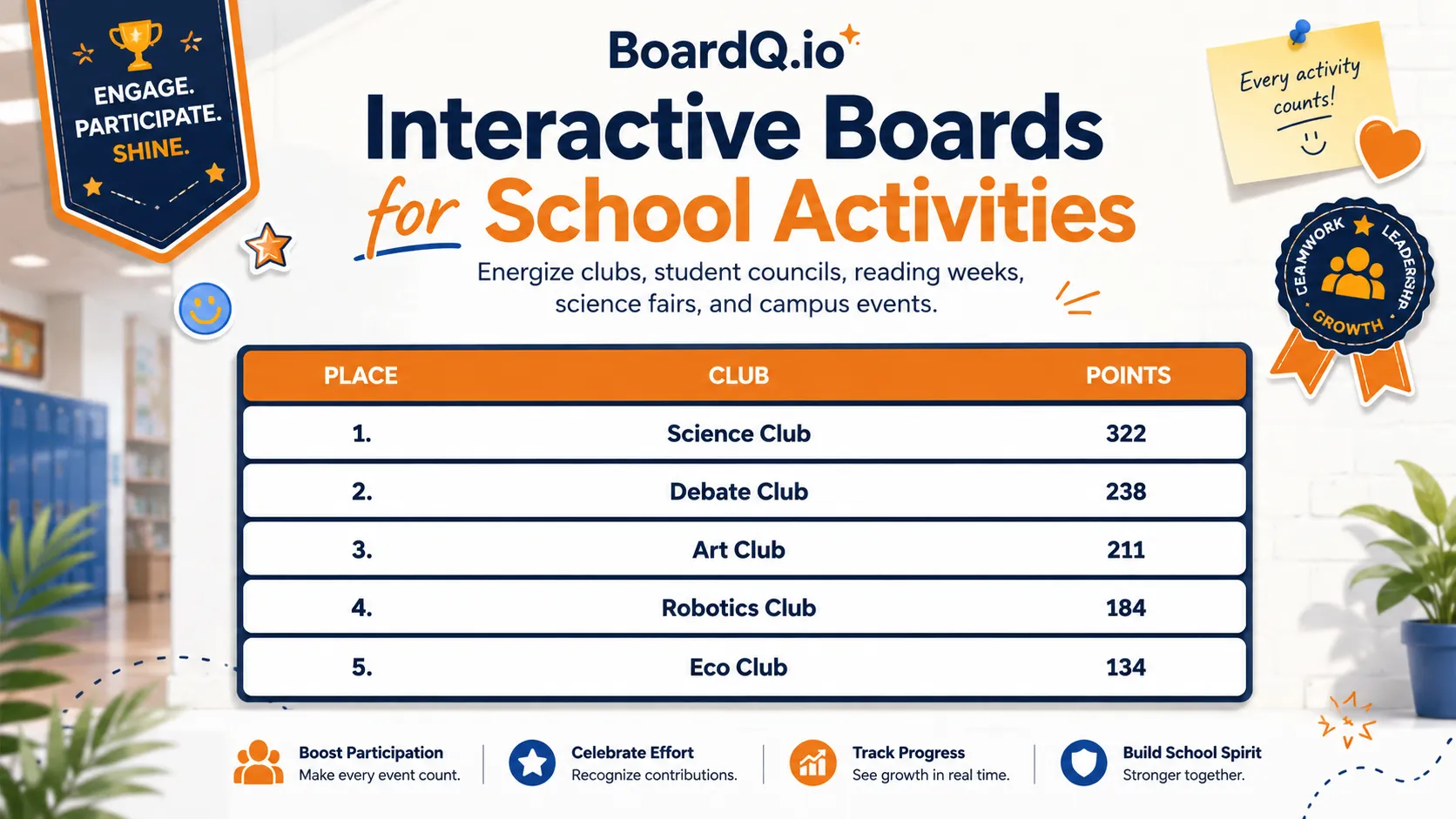
The best classroom leaderboards don't just track test scores. The metric you choose decides whether students feel motivated or defeated. Consider tracking:
- Reading minutes or books completed - rewards effort, not just ability
- Homework streaks - consecutive days of turning work in on time
- Participation points - raise your hand, help a classmate, ask a good question
- Quiz scores - weekly low-stakes quizzes keep students reviewing material
- Team or house points - groups compete together, reducing individual pressure
The golden rule: choose a metric where every student has a realistic chance of climbing the board, not just the top performers.
Tip: Effort-based metrics (reading minutes, streaks, participation) keep the whole class in the race. Pure ability metrics tend to reward the same few students every week.
Step 2: Set up your leaderboard in BoardQ
- Go to boardq.io and click "Create Leaderboard"
- Name it (e.g. "Mrs. Johnson's Reading Challenge")
- Choose a theme - dark mode looks great on classroom TVs and projectors
- Add student names, or team names for group competitions
- Display the QR code so students can follow along on their own devices
The whole setup takes about 30 seconds. No app installs, no student accounts, no spreadsheets to maintain.
Step 3: Display it prominently
A leaderboard only works if students see it regularly. The best teachers make it part of the room:
- Classroom TV or projector - open the board in full-screen mode
- Interactive whiteboard - keep it visible during class transitions
- Student devices - share the QR code so they can check standings on Chromebooks or phones
Because BoardQ updates live over the web, the screen re-sorts the moment you enter a new score - no refresh, no reopening the file.
Step 4: Update scores consistently
Update the leaderboard at the same time each day or week. Consistency builds anticipation - students start looking forward to "leaderboard time." You can update straight from your phone while the class watches the big screen change in real time, which is half the fun.
Step 5: Keep it fair and positive
- Reset periodically - weekly or monthly resets give everyone a fresh start
- Celebrate improvement - a "biggest climber" award often matters more than first place
- Use teams - group leaderboards spread out the pressure on individual students
- Run multiple boards - separate leaderboards for different subjects or activities give more students a chance to shine
Common mistakes to avoid
- Ranking only on raw test scores. The same students win every time and everyone else tunes out.
- Never resetting. Once a student is far behind with no way to catch up, the board stops motivating them.
- Making it permanent and public forever. Keep it light - it's a game, not a report card. Consider showing only the top spots, or use team names.
- Forgetting to update it. A stale board is worse than no board. Pick a rhythm you can actually keep.
Real example: the weekly spelling bee
A 4th-grade teacher runs a spelling test every Friday. She enters scores into BoardQ from her phone as students finish, and the classroom TV shows the leaderboard updating live. At the end of each month, the top three choose from a prize box - and a "most improved" award goes to the biggest climber.
The result: spelling-test participation rose from 70% to 98%, and average scores improved by about 15% over the term.
Frequently asked questions
Won't a leaderboard discourage struggling students?
It can, if it ranks pure ability. Track effort-based metrics, reset often, and reward improvement - now the student who went from 5 to 15 reading minutes gets celebrated too. Team boards also take the spotlight off individuals.
Do students need accounts or apps?
No. You enter the scores, and students simply watch the screen or scan a QR code to follow along. There's nothing for them to install or log into.
Is it free for teachers?
Yes - you can create and run a live classroom leaderboard for free, with no credit card required.
Get started
Create your first classroom leaderboard in under a minute - it's completely free, and it works on any screen you already have. Try BoardQ now →
Bring a live leaderboard to your classroom
Motivate students with real-time rankings on the classroom screen. Free, no student accounts, live in minutes.
Create a classroom leaderboard →