How to Display Live Scores on a Big Screen
A practical guide to getting live scores up on a TV, projector, or big screen - and keeping them updating flawlessly.
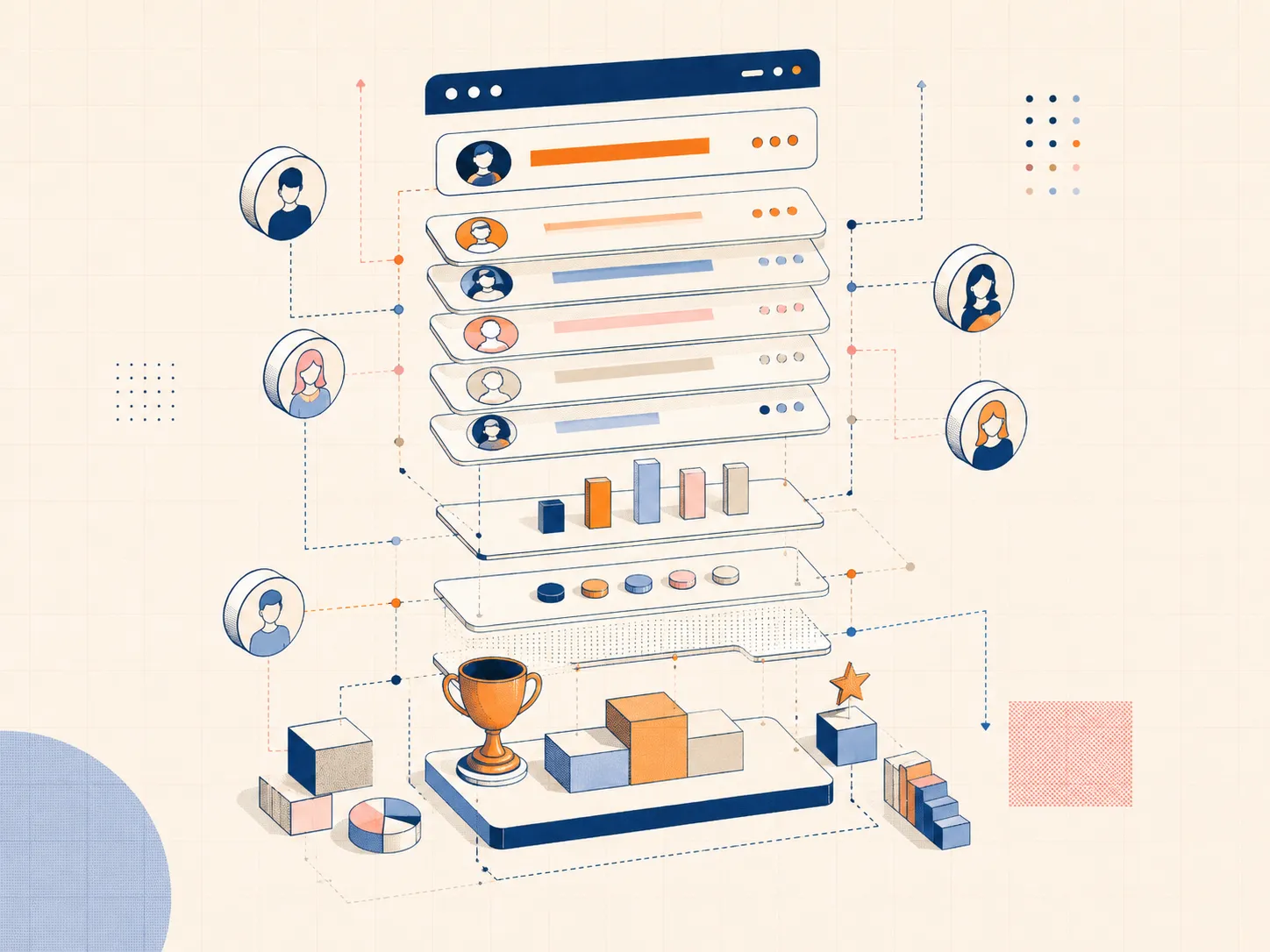
The big screen makes the competition real
Scores hidden in a spreadsheet don't create excitement. The same numbers on a giant screen, updating live, turn a room into a competition. Here's how to get your leaderboard on the big screen and keep it running smoothly all event.
What you need
- A screen - TV, projector, or LED wall
- A device to drive it - laptop, mini-PC, or a casting dongle (Chromecast / Apple TV)
- A stable internet connection (the board updates in real time)
Step 1: Create your board
Set up a free leaderboard on BoardQ, add your teams, and pick a high-contrast theme - dark backgrounds read best from a distance.
Step 2: Cast or connect to the screen
Either plug a laptop into the screen via HDMI and open the board in a browser, or cast the browser tab to a Chromecast / Apple TV. A dedicated mini-PC behind the screen is the most reliable option for all-day events.
Step 3: Full-screen mode and auto-refresh
Open the board in full-screen mode so there's no browser chrome. BoardQ auto-refreshes when you update scores, so once it's up you never have to touch the screen device again - just update from your phone.
Troubleshooting tips
- Stop the screen sleeping - disable screensaver and sleep on the driving device
- Match the resolution - set the display to the screen's native resolution for crisp text
- Use wired internet if possible - more reliable than venue Wi-Fi
- Test in advance - check legibility from the back of the room
Add a QR code for a second screen
Display the board's QR code so attendees can follow the same live scores on their phones - ideal for big venues where the main screen isn't visible to everyone.
Get started
Get your live scores on the big screen in minutes. Create your leaderboard free →
Power your event with a live leaderboard
Big-screen, real-time rankings for conferences, hackathons and competitions. QR-shareable and API-driven. Free to start.
Create an event leaderboard →