How to Use a Digital Scoreboard in the Classroom
A digital scoreboard turns your classroom TV into a live engagement tool. Here's how to set one up and use it well.
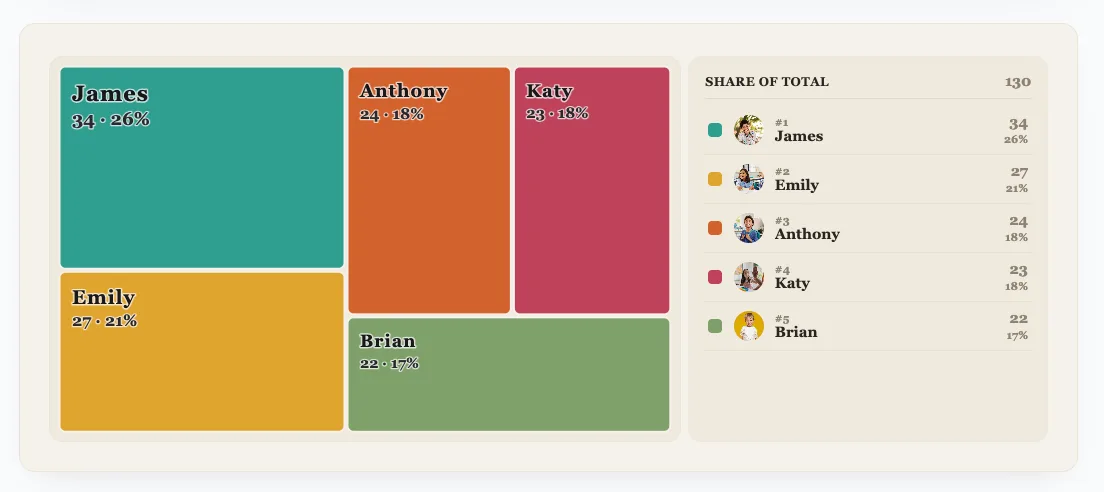
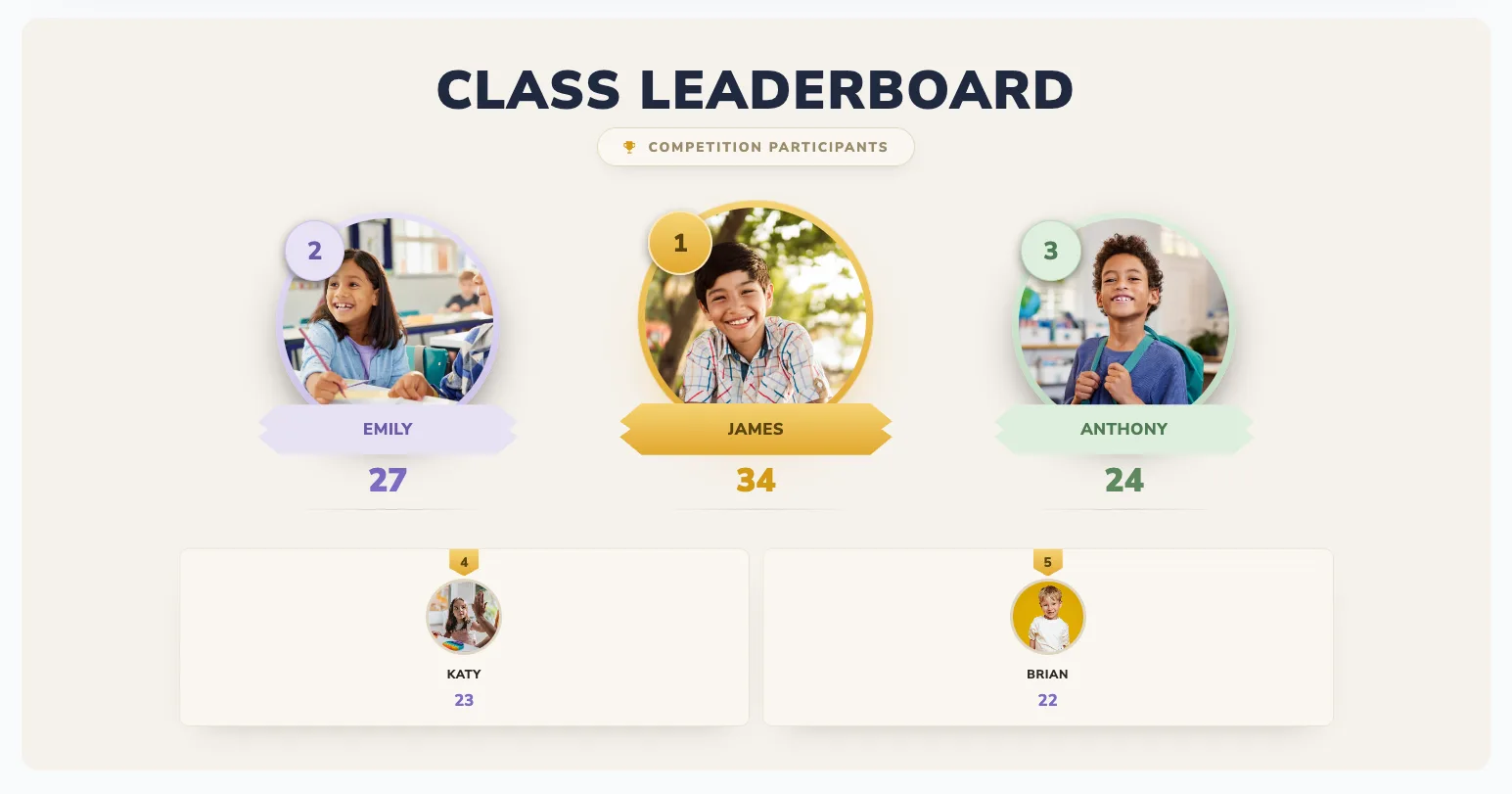
Most classrooms already have the one thing a digital scoreboard needs: a screen. Turn that TV or projector into a live points board and routine score-keeping becomes something students actually watch - the board re-sorts the instant you award a point, and the room reacts.
Here's exactly how to set one up, how to use it day to day, and how to keep it motivating for every student.
Why go digital
A chalkboard tally is slow, easy to lose, and impossible to make exciting. A digital scoreboard updates instantly, looks sharp from the back of the room, and re-sorts itself as scores change - turning point-keeping into a live event instead of a chore.
The magic isn't the points - it's that everyone sees them change in real time. That instant feedback is what pulls students in.
What you need
- A classroom TV, projector, or interactive whiteboard
- A phone or laptop to update scores
- An internet connection
No special apps, no student logins, no extra hardware to buy.
Step 1: Create the scoreboard
Open BoardQ, create a board, and add student or team names. Choose a high-contrast theme so it's readable from the back of the room, and give it a fun name your class will recognise.
Step 2: Display it on your classroom screen
Cast the board to your TV or open it full-screen on the projector. It auto-refreshes over the web, so once it's up you can leave it running for the whole lesson without touching it.
Step 3: Update points live
Award points from your phone as you teach - for correct answers, participation, or completed work. The screen updates in real time, and the live re-sort is what keeps students glancing back at it.
Ways to use it day to day
- Quiz scoring - run a quick quiz and update scores live
- Behaviour points - reward focus and kindness in the moment
- Team challenges - split the class and track group totals
- Daily warm-ups - a points race to start the lesson
- Reading or homework streaks - track consistency over the week
- Transitions - award points to the first table ready to move on
Points ideas that keep it fair
What you score decides whether the board motivates everyone or just the usual top few. A good mix:
- Effort and improvement - beating your own previous score
- Participation - asking and answering, helping classmates
- Accuracy - quiz and drill results
- Teamwork - group goals that share the spotlight
Tips for getting the most out of it
- Update at consistent moments - start of class, after a quiz, end of day - so students learn to anticipate it.
- Reset weekly or monthly so a slow start never locks anyone out.
- Reward the biggest climber, not only first place.
- Use teams when the room feels tense - it lowers individual pressure.
- Never deduct points publicly for behaviour; it embarrasses students.
Frequently asked questions
Do I need a smartboard or special hardware?
No. Any screen that can open a web page works - a TV with a browser, a laptop plugged into a projector, or an interactive whiteboard. You update from your phone.
Will it work on the classroom Wi-Fi?
Yes. The board runs in a normal browser and updates live over the web, so a standard school connection is plenty.
Is it free?
Yes - you can create and run a live classroom scoreboard for free, with no credit card required.
Get started
Put a digital scoreboard on your classroom screen in under a minute - free. For setup details, see how to make a classroom leaderboard, or create yours now →.
Bring a live leaderboard to your classroom
Motivate students with real-time rankings on the classroom screen. Free, no student accounts, live in minutes.
Create a classroom leaderboard →